

https://github.com/m4kr0x/flutter_ssl_bypass/
Hello Folks
In this article, I’ll walk you through my journey in intercepting HTTPS traffic from a APK based on Flutter during a pentesting engagement After 2 days of research and trying out several Frida scripts that didn’t work.
I was analyzing an APK that was developed using Flutter. As many of you know, Flutter apps are written in Dart, and Dart does not use the system CA store. That means traditional certificate pinning bypass techniques often don’t work.
When I first tried to capture the app’s HTTPS traffic using Burp Suite, I failed — no requests came through.
I began looking for ways to bypass Flutter’s SSL verification. During my research, I found several scripts
I tried them all, and also tried reflutter but unfortunately, none of them worked in my case.
Thinking it might be a routing issue, I attempted to redirect traffic to Burp Suite manually
then i configured Burp Suite to listen on all interfaces (port 8083)

then enable this check

after that i used the following iptables rules to redirect all traffic to burp:
iptables -t nat -A OUTPUT -p tcp -j DNAT --to-destination Burp_IP:Burp_PortBut I hit this issue. TLS verification blocked the traffic

and what made this more confusing is that the same scripts worked perfectly for my friend So I began to question is the problem with the APK itself, or something specific to my setup?
To test that, I ran the same scripts against some demo Flutter apps. Surprisingly, they worked. That confirmed the issue was not with the scripts, but with apk.
After digging deeper, I realized a key detail:
- My friend was running the AVD on macOS, which uses an ARM-based emulator
- I was running the AVD on a PC, which uses the x86_64 architecture
This difference in architecture led to different memory layouts and offsets in the binary. As a result, the scripts that worked for ARM couldn’t locate the correct patterns in x86_64.
Essentially, the scripts successfully matched the memory patterns on ARM, but failed to do so on x86_64 because the bytecode and structure were different.
I kept searching for a way to make this scripts works but i failed after that I started reverse-engineering the libflutter.so library instead.
Dig Dive in libflutter.so
First, I extracted the libflutter.so file using apktool.

I chose x86_64 because my emulator is x86_64 arch
Then, I opened it in Ghidra:
- File → Import → Select libflutter.so
- Double-click to analyze
Flutter uses BoringSSL to handle everything related to SSL
Luckily, BoringSSL is open source.
I found from various resources that the file ssl_x509.cc is responsible for SSL certificate
Inside it, there’s a function called ssl_crypto_x509_session_verify_cert_chain that responsible for ssl handshake

This function:
- Takes 3 arguments
- Returns a boolean (true = success, false = failed)
so what we need to do is to figure this function in libflutter
In Ghidra, I searched for the string "ssl_client" which appears in the same file around line 230.
- go to Search → For Strings


Look for ssl_client then Double click on the result and explore its XREFs
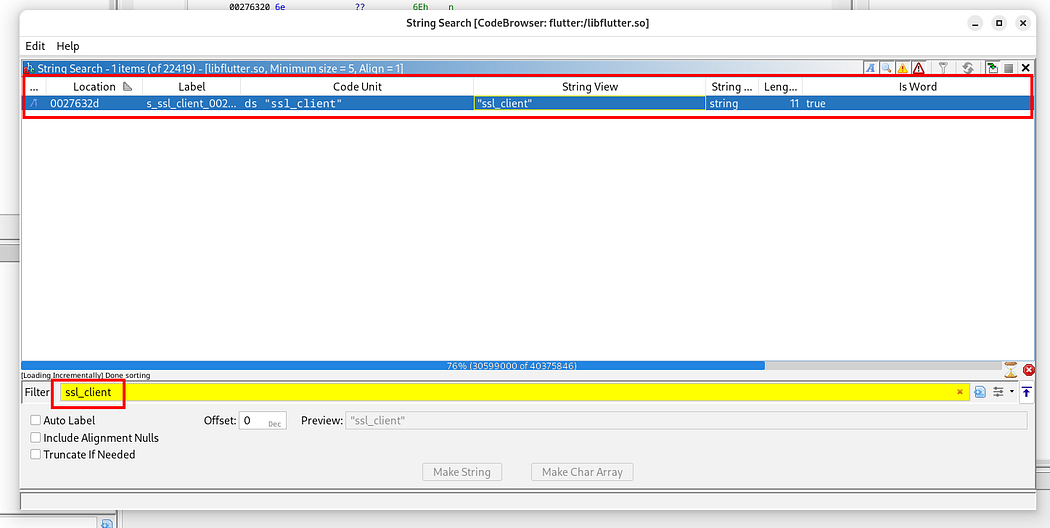
there’s 2 XREF, maybe you find more of XREF so check all of them

I checked each referenced function (FUN_...) manually by double click on FUN_ and the correct one will be the function that takes 3 arguments and returns a boolean
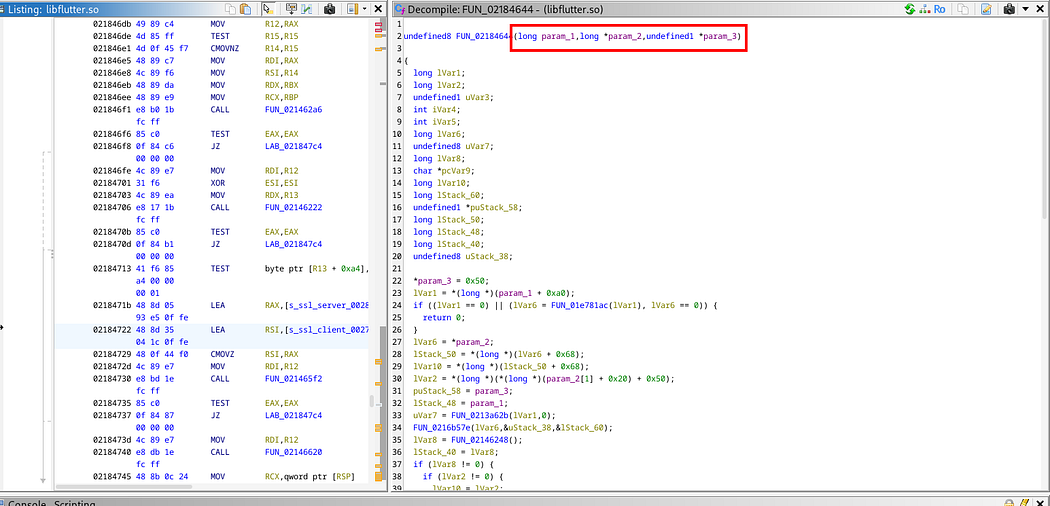
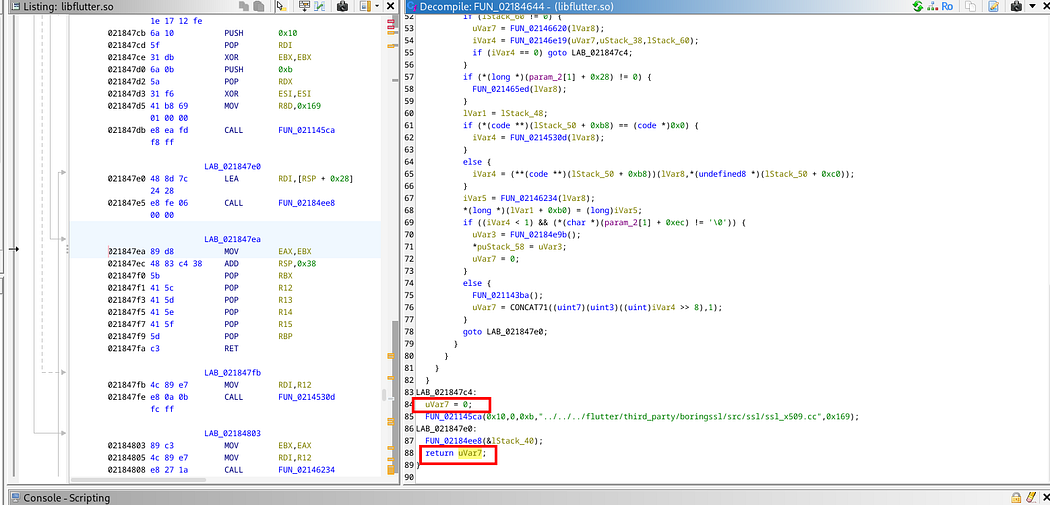
In my case, the second one was correct.
Calculating the Offset
Once I located the function, I got the offset by double click on the function name:

Offset: 02184644
Then I subtracted the base load address (usually 100000) to get the relative offset used in Frida:
02184644–100000 = 2084644
This is the address we’ll use in Frida script
Frida Script
Here’s a simple script I wrote to hook and patch the return value of the ssl_crypto_x509_session_verify_cert_chain function:
This script has been tested on an AVD with Android 11 based on x86_64, so if it doesn’t work for you or you encounter any errors, just ask chatgpt to edit the script to suit your environment.
don’t forget to replace the offset with yours

then run the script
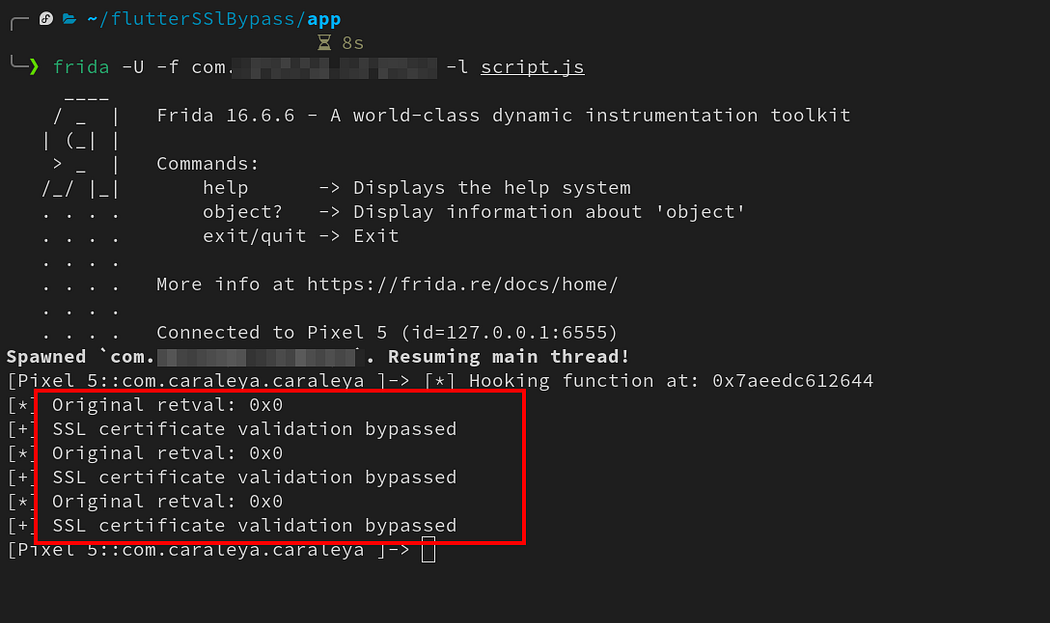
After running the script, Burp Suite was finally able to intercept all HTTPS traffic from the app.
The SSL pinning was completely bypassed!

Flutter TLS Bypass: How to Intercept HTTPS Traffic When all other Frida Scripts Fail
In this article, I’ll walk you through my journey in intercepting HTTPS traffic from a APK based on Flutter during a pentesting engagement…
m4kr0x.medium.com
Flutter TLS Bypass: How to Intercept HTTPS Traffic When all other Frida Scripts Fail
In this article, I’ll walk you through my journey in intercepting HTTPS traffic from a APK based on Flutter during a pentesting engagement…
m4kr0x.medium.com
Thanks for reading and feel free to contact with me
and don’t forget to follow me on medium and Twitter
'경로 및 정보' 카테고리의 다른 글
| What is Azure Application Gateway v2 (2) | 2025.06.06 |
|---|---|
| Intercept HTTPS Traffic When all other Frida Scripts Fail (0) | 2025.06.06 |
| Testing for Skype for Business or Lync Client Connectivity and other Skype Scripts (1) | 2025.05.08 |
| Getting started with Burp Collaborator (1) | 2025.05.07 |
| Spring boot Actuator 참고 (0) | 2025.04.20 |

wtdsoul